Trackdesk MCP: Manage Your Affiliate Program with AI
Learn how MCP connects AI to affiliate tracking software and how Trackdesk lets you review data, approve conversions, and update offers through AI.

AI can help affiliate managers understand performance, investigate transactions, and identify partners that need attention. Its practical value also depends on what happens next: can the assistant carry out the manager’s decision?
Model Context Protocol (MCP) connects AI assistants to a platform’s data and tools. The available tools determine whether the assistant can only retrieve information or also make changes.
Trackdesk MCP supports both reading data and executing operations through Trackdesk’s public API. That allows a conversation to progress from investigating a record to applying a supported update, with the manager reviewing the proposed action and verifying the result.
Read-only AI vs operational AI
Read-only AI can make reporting and investigation easier. Managers can request performance comparisons, explore conversion patterns, or ask for information that would otherwise require several reports.
The boundary appears when the findings call for a change. An assistant may identify pending conversions or retrieve an offer’s configuration, but read-only access cannot approve those conversions or edit the offer. Execution remains a separate step.
Operational AI extends that workflow. With the appropriate tools and permissions, an assistant can retrieve the relevant records, prepare an update, execute it after authorization, and check the resulting state.
For affiliate managers, the difference is concrete: less manual work between deciding what should happen and completing the task.
AI integrated into the platform workflow
Trackdesk’s approach connects AI assistance to the work of running an affiliate program. Its in-platform capabilities include commission guidance within offer revenue and payout settings, alongside AI support for tracking configuration. These place assistance where managers make operational decisions.
For example, the AI Postback Assistant is accessible directly from the Affiliate Postbacks page. It guides users through configuration and helps identify the parameters required by different affiliate tracking platforms. Trackdesk’s integration guidance explains this workflow.
MCP provides another way to work with the same program, through a compatible external assistant. Its role is to connect natural-language requests to live data and supported actions. The in-platform interface and MCP connection serve complementary purposes: managers can use AI for assistance or execution, inspect the underlying records in Trackdesk, and continue manually when that suits the task.
This keeps the focus on completing work in the affiliate program. A useful answer is a starting point; the outcome is a report understood, a configuration checked, or an agreed change applied.
Which affiliate management tasks can Trackdesk MCP handle?
Trackdesk’s public API overview documents the actions available through MCP, including reporting and operations across program records. Each request remains subject to the connected account’s permissions.
The following examples show how to make those requests specific and verifiable.
Review performance and investigate results
A manager could ask:
Compare approved conversions by affiliate for the last two complete months. Show the totals, the changes between periods, and the filters used.
The next step is to examine the records behind any unexpected result. Specify the reporting period, conversion status, and relevant affiliate or offer so the comparison answers the intended question.
Review and approve conversions
Start by identifying the transactions:
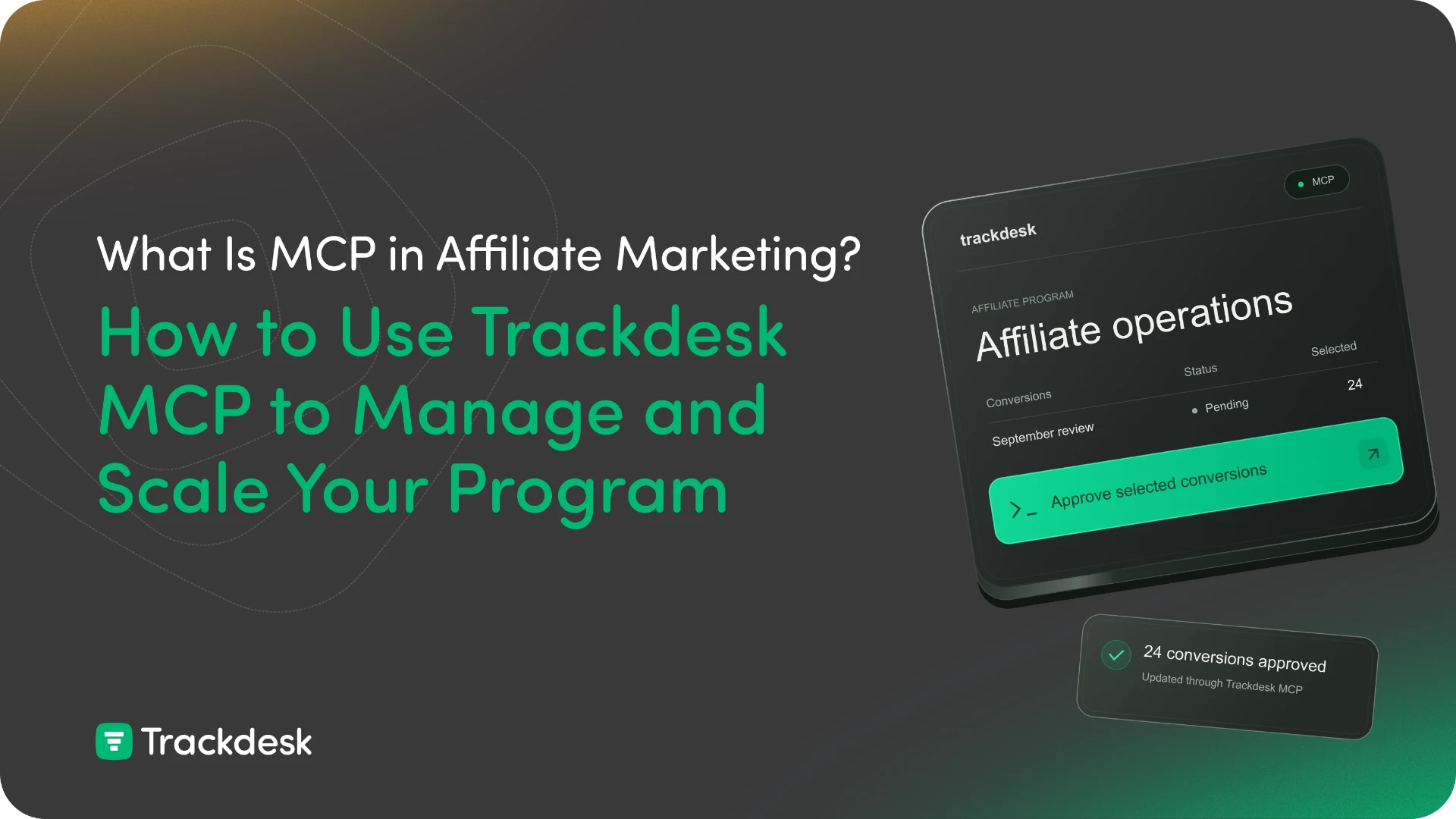
Retrieve pending conversions for Affiliate X from September. Include their IDs, dates, and commission amounts. Leave their statuses unchanged.
After reviewing them, specify the exact conversion IDs to approve. Then ask the assistant to check their updated statuses.
Keeping the decision tied to individual records makes both authorization and verification clearer.
Create or update offers
Trackdesk supports creating and editing offers through its public API and MCP. This lets teams turn agreed offer details into a configuration that can be reviewed in the platform. Trackdesk’s Offers API update describes this capability.
For an existing offer, a request could be:
Retrieve Offer X and prepare a landing-page update using this URL. Show the offer ID, current URL, and replacement URL, then wait for approval.
Once authorized, the assistant can apply the update and retrieve the offer again for verification.
Manage affiliate records and offer access
Routine partner administration can also follow a review-and-approve process:
Check Affiliate X’s tier and access to Offer Y. If access is missing, prepare the change and show me the affected records before proceeding.
Checking the existing configuration first helps avoid duplicate or unnecessary changes.
Trackdesk vs Everflow vs impact.com: MCP capabilities
MCP support alone does not tell you which tasks an assistant can complete. Compare the documented tools against the operations your team performs.
| Platform | Documented MCP capabilities | Practical implication |
|---|---|---|
| Trackdesk | Read and write operations through its public API, subject to account permissions. | An assistant can investigate records and execute supported updates through the same connection. |
| Everflow | Read-only access to network data. Record changes use its Network REST API. | MCP supports analysis; changing records requires another execution route. |
| impact.com | Capabilities vary by account type and tool. Brand tools have specific management limitations; partner tools include tracking-link creation. | Check each intended action rather than treating the entire integration as read-only or fully operational. |
Comparison based on public documentation reviewed October 6, 2026.
Everflow: analysis with a separate step for record changes
Everflow’s MCP documentation describes a read-only server for retrieving reports, offers, partners, clicks, and conversions. Creating, editing, or deleting records requires its Network REST API.
Everflow also offers an in-platform assistant. Ask Everflow AI can remain beside the user’s work, use page context, answer performance questions, and generate tracking links. Its documentation nevertheless states that it cannot change account records, such as campaign status or payouts. Ask Everflow AI documentation.
The operational distinction is therefore about execution. Trackdesk’s MCP connection supports record changes as well as retrieval, allowing supported management tasks to continue through the connected assistant.
impact.com: check the specific tool and account type
The published impact.com brand MCP tools support analytics, investigation, recommendations, and lookups. Their documented limits include partner-list tools that cannot approve applications and task-list tools that cannot create or update tasks.
Its partner MCP tools include tracking-link creation. Teams should evaluate the tools available to their account against the precise workflow they want to complete.
Keep decisions, approvals, and verification explicit
Write access affects live program data. Trackdesk authenticates MCP requests using a personal access token with the issuing user’s permissions. Its setup guidance recommends keeping the AI client’s tool approval prompts enabled and reviewing affected records before bulk changes. Trackdesk MCP documentation.
Use a consistent process:
- Retrieve the current records and confirm their IDs.
- Review the exact proposed changes.
- Authorize the selected updates.
- Retrieve the records again and verify the results.
For external MCP clients, approval behavior depends on the client’s settings. Configure those controls before using write operations.
Specific instructions also make review easier. An agreed price, named offer, and exact value provide a clear action to authorize. A broad request to improve performance still needs a business decision before changes can be applied.
Connect an AI assistant to Trackdesk
Trackdesk hosts its MCP server. Compatible clients include Claude, Cursor, and Windsurf; connection steps depend on the client.
Follow the Trackdesk connection guide to create a personal access token and configure access. Start with a familiar record, check the returned information, and then try a small supported update with approvals enabled.
Evaluate the result in practical terms: was the intended change applied correctly, could you verify it in Trackdesk, and how much manual work remained?
That is where operational AI earns its place in an affiliate workflow: helping managers carry a decision through to a completed, verifiable action.

Hi! I'm Bohdan, Content Manager at Trackdesk. I write about affiliate marketing, tracking, and partner programs — breaking down complex topics into something you can actually use — and I'm the voice behind Trackdesk's social media, from platform updates to industry news. Wherever you find us, the goal is the same: answers that are easy to find and easy to apply.